AdministrationAuthentication
Microsoft Entra ID / Azure SAML 2.0 Configuration (Gigantics SP)
You can enable SAML Single Sign-On authentication method in Gigantics. In can be configured either from the config file on boot or from the application global settings.
Parameters (Gigantics)
- Entry Point (Login URL) — IdP URL that starts the SAML flow.
- Issuer (Entity ID) — IdP identifier.
- IdP Signing Certificate — X.509 certificate (PEM/Base64) to validate signatures.
- Logout URL (optional) — IdP Single Logout endpoint.
File configuration (i.e. config/custom.yaml)
saml:
  entryPoint: 'https://login.my-idp-server.com'
  issuer: 'my-gigantics-app'
  cert: |
    -----BEGIN CERTIFICATE-----
    MIIC8D....ToVa6q
    -----END CERTIFICATE-----
  logoutUrl: 'https://login.my-idp-server.com'
UI configuration (Global Settings → Authentication → SAML Configuration)
| UI Field | Config key | Description |
|---|---|---|
| SAML Entry Point | saml.entryPoint | IdP login URL |
| Issuer | saml.issuer | IdP Entity ID |
| IdP Signing Certificate | saml.cert | Full PEM in Base64 (BEGIN/END) |
| Logout URL (optional) | saml.logoutUrl | IdP SLO endpoint |
Flow (overview)
User → Gigantics (/auth/saml) → IdP → SAML Response → /auth/saml/callback → session
Logout: /auth/saml/logout → IdP SLO (RelayState) → /sso-logout
Steps in Gigantics (SP)
- Define Entry Point, Issuer, and IdP certificate (UI or YAML).
- (Optional) Define Logout URL if the IdP supports SLO.
- Save and restart the server.
- Test at
https://my-gigantics-instance/auth/saml.
Steps in the IdP (generic)
- Create a SAML app (SP-initiated).
- Entity ID =
issuerconfigured in Gigantics. - ACS/Reply URL =
https://my-gigantics-instance/auth/saml/callback. - (Optional) Sign-on URL =
https://my-gigantics-instance/signin. - Responses signed (response or response+assertion).
- Export the signing certificate (Base64) and paste into Gigantics.
- (Optional) RelayState/post-logout =
https://my-gigantics-instance/sso-logout.
Entra ID / Azure AD (IdP)
Initial navigation
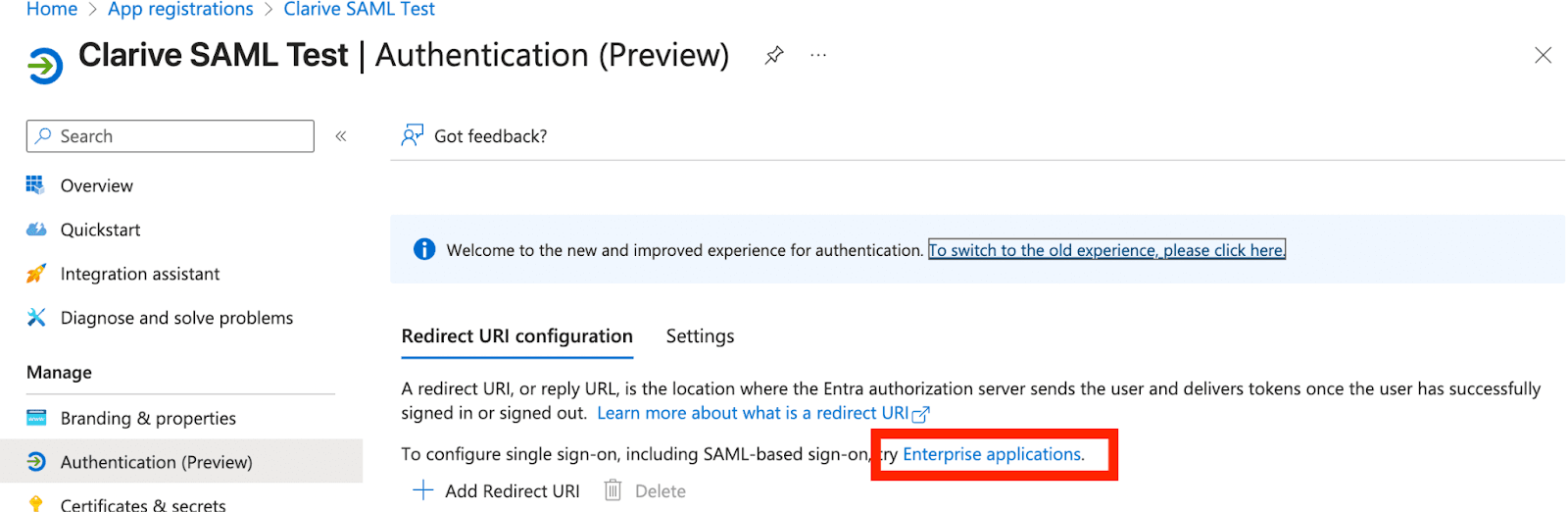
- App registrations →
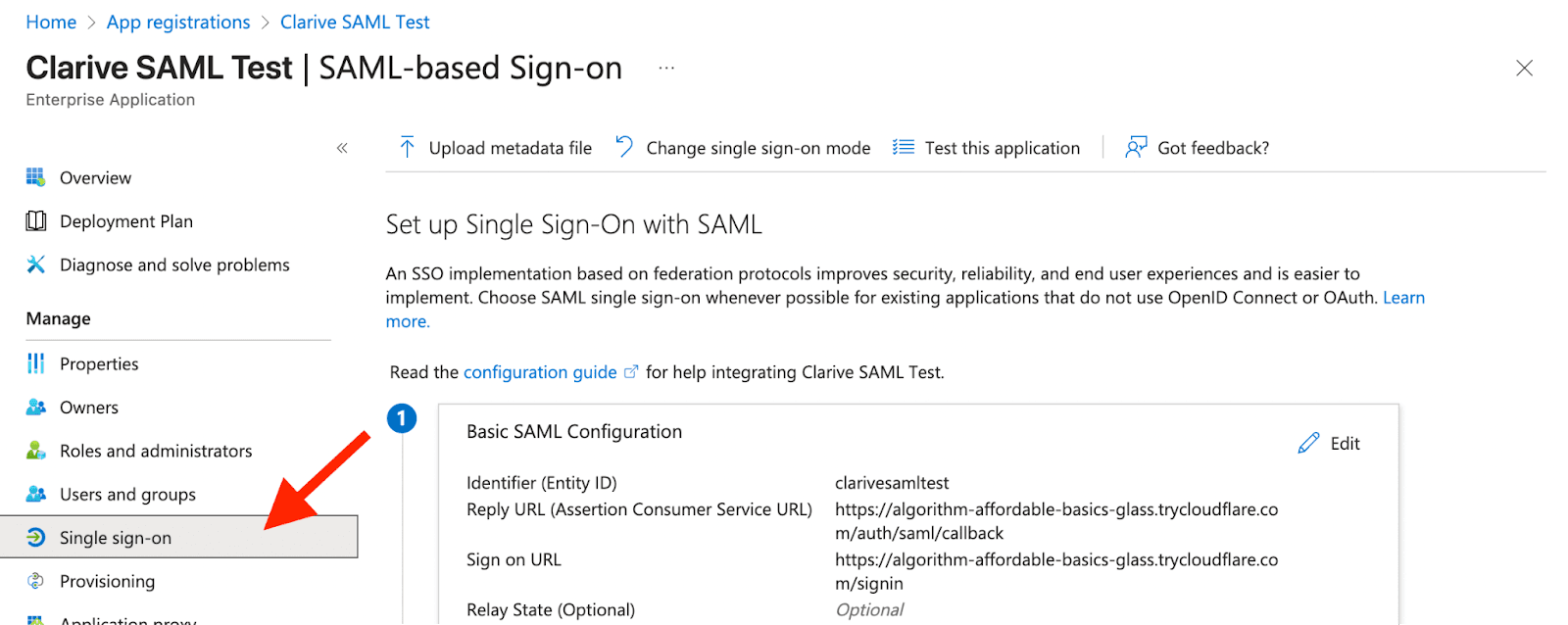
{App Name}→ Authentication (Preview) → Enterprise applications. - Go to Single sign-on → SAML.
Certificates and signing
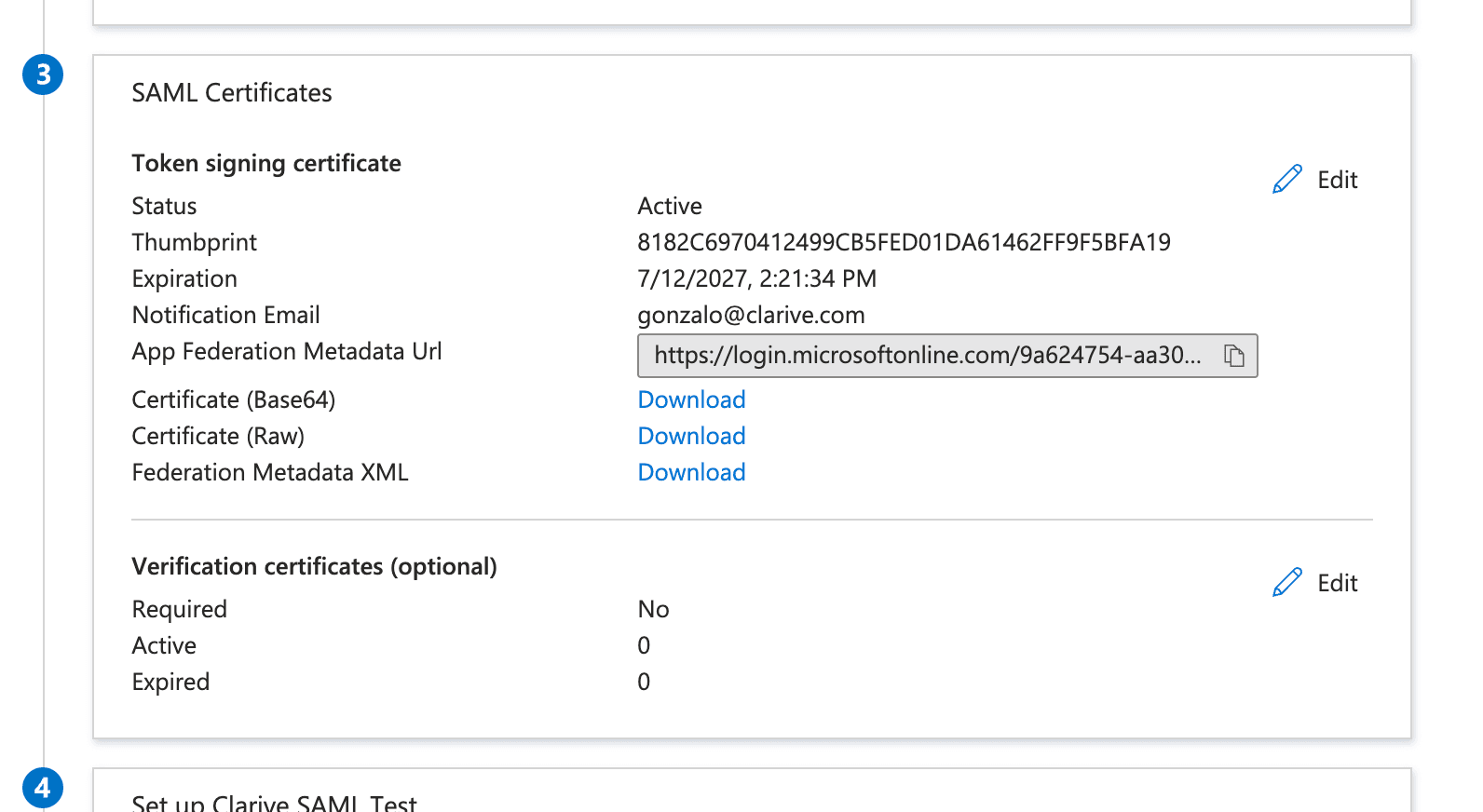
Configure signing as “Sign SAML response” or “Sign SAML response and assertion.”
Key URLs
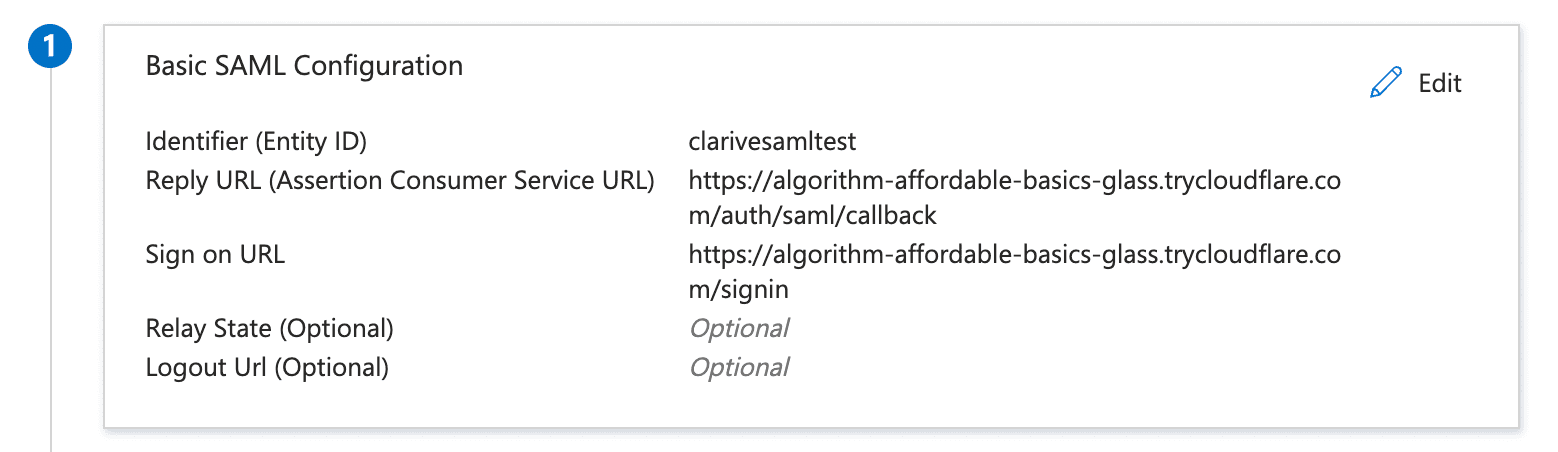
- Identifier (Entity ID): e.g.,
my-gigantics-app(must matchissuer). - Reply URL:
https://my-gigantics-instance/auth/saml/callback. - Sign-on URL:
https://my-gigantics-instance/signin(optional).
Login URL / Entry Point
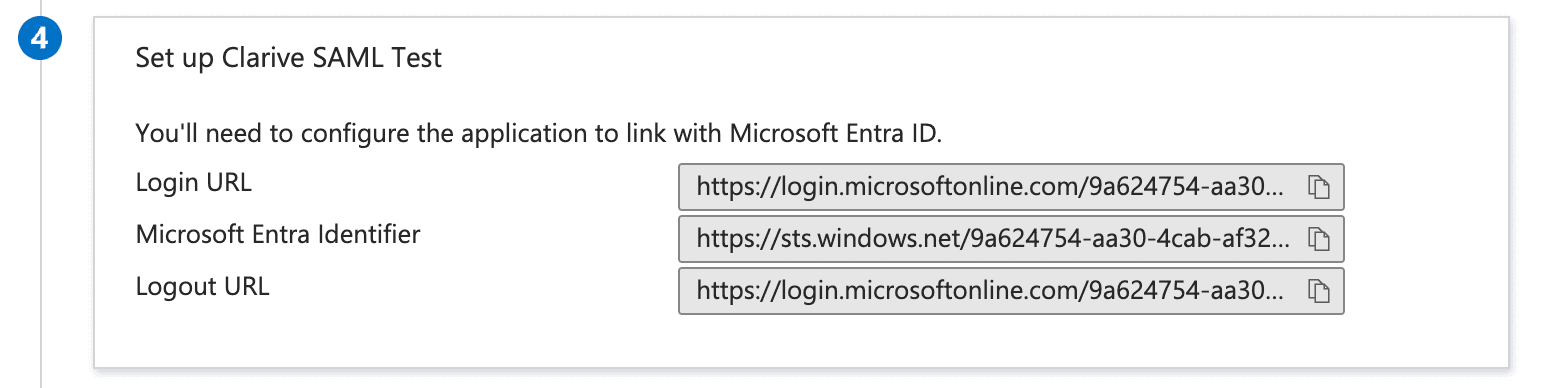
Copy the Login URL and use it as the Entry Point in Gigantics.
Set up AppName
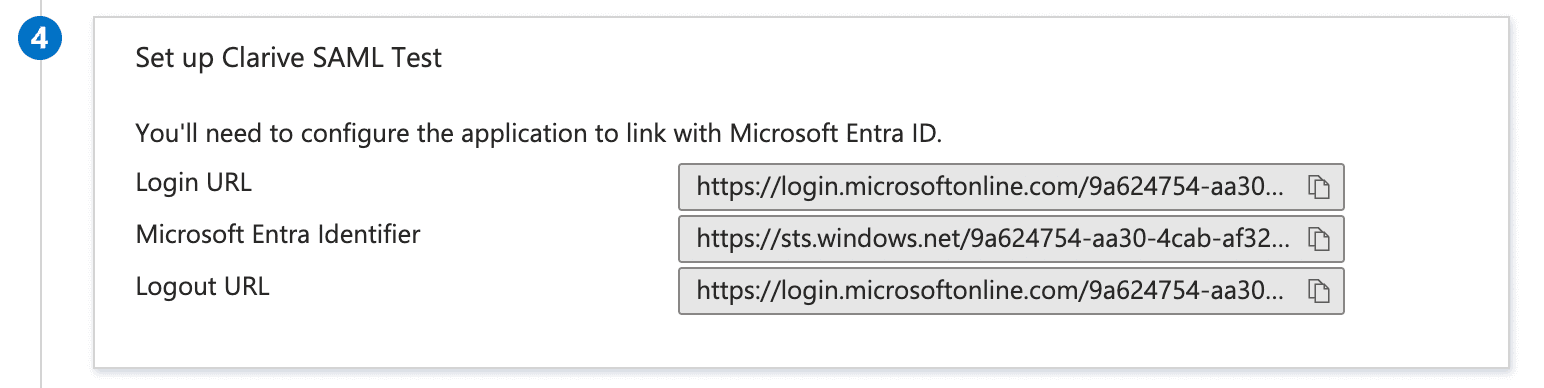
Use this section to obtain Login URL and certs; no further changes needed.
Gigantics (SP) UI mapping with Azure
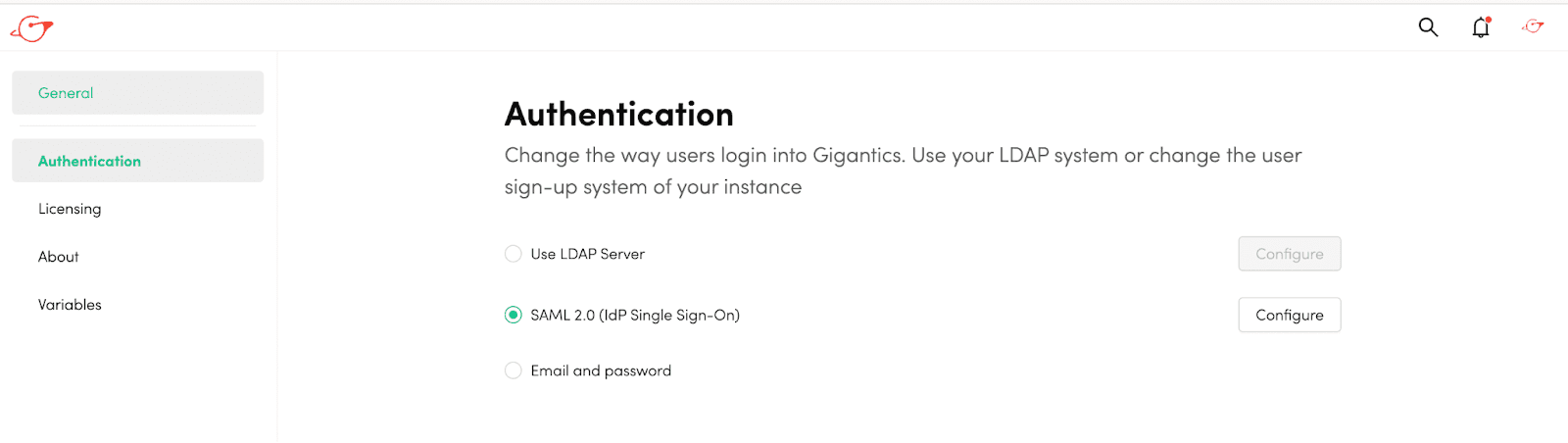
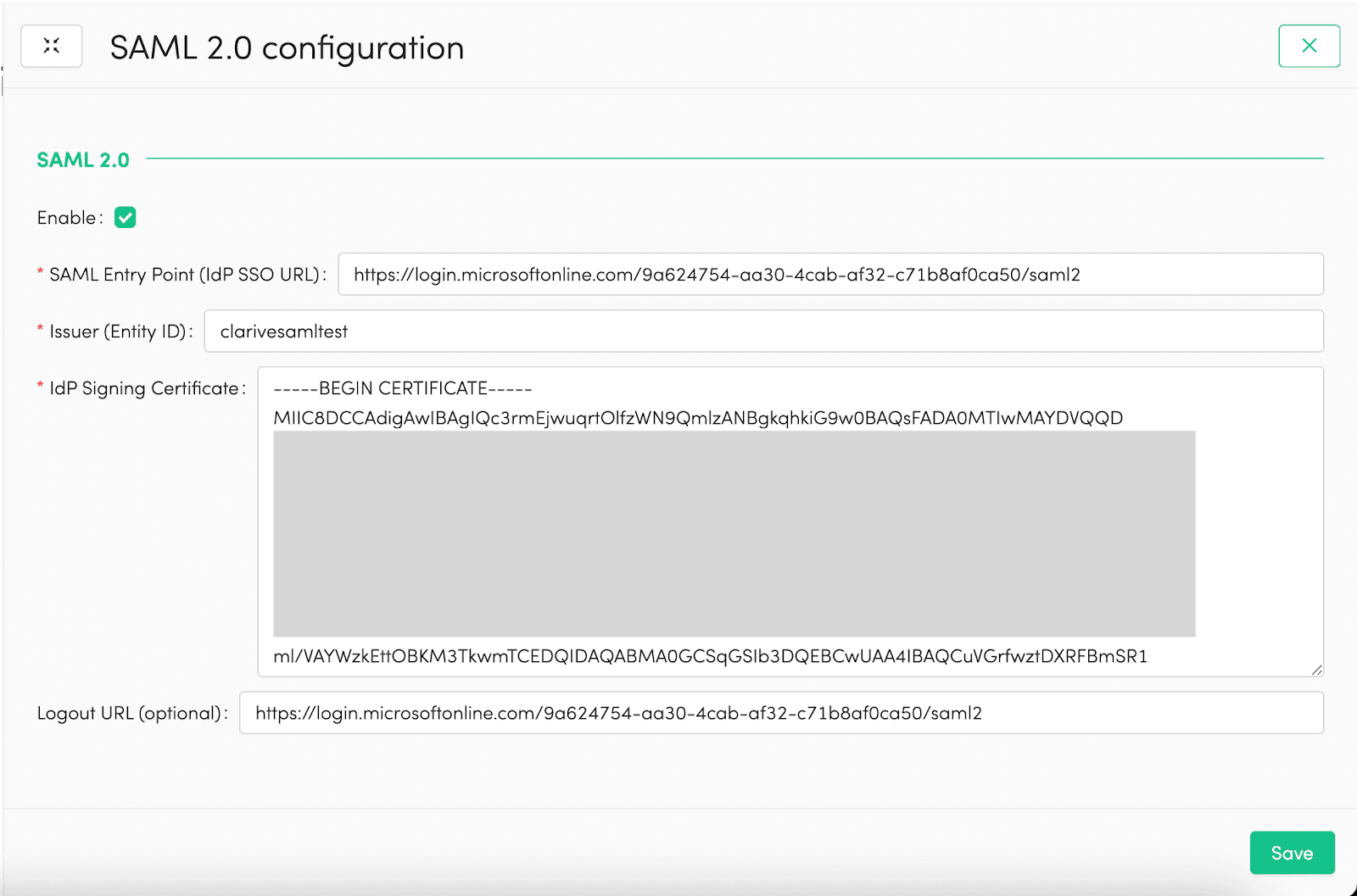
- Entry Point ↔ Login URL (Azure).
- Issuer ↔ Identifier (Entity ID).
- Reply/ACS URL ↔
https://my-gigantics-instance/auth/saml/callback. - Sign-on URL (optional) ↔
https://my-gigantics-instance/signin. - IdP Signing Cert ↔ Base64 cert (SAML Certificates).
- Logout URL (optional) ↔ Front-channel logout URL.
Certificate insertion (PEM)
Example of how the PEM block must look in Gigantics:
-----BEGIN CERTIFICATE-----
MIIC9DDD....
TylNaWNyb3....
STNaFw0yN....
U1NPIENlc....
S7o3oJ3li....
-----END CERTIFICATE-----
Troubleshooting
- Certificate: use full PEM (BEGIN/END) without extra spaces.
- Entity ID: must match exactly between IdP and Gigantics.
- Signatures: unsigned responses are rejected.
- Logout: set RelayState/post-logout to
https://my-gigantics-instance/sso-logoutif return is required. - Azure “Signout failed… not a participant”: ensure login/logout use the same app and the session comes from that app.